Online friendships can be part of kids’ play, but children need age-appropriate settings, family boundaries, and an adult they can tell when something feels wrong. Start by playing together, limiting contact, and practicing how to stop a conversation and ask for help. No setting can guarantee safety, so keep checking in as games and friendships change.
Quick answer
- Learn how contact works in the games your child uses.
- Keep younger kids’ friend lists to people your family knows offline.
- Practice recognizing requests for secrets, photos, gifts, or another app.
- Show your child how to stop, block, report, and find an adult.
- Make asking for help a safe choice, even after a broken rule.
Your 8-year-old says, “My friend from Roblox helped me build this.” You recognize the building but not the friend. Try “Show me how you know them” before deciding what the friendship means; you need more information, and your child needs to know you can listen.
This is general safety information, not advice for a specific incident. If something has happened, use the reporting steps below and contact the appropriate child-safety service or law enforcement. For immediate danger, contact emergency services.
1. Play the game with them first
Ask your child to give you a short tour. Look at how people join, where messages appear, and whether a player can contact them privately or send invitations. NCMEC’s gaming guidance recommends asking children to show you their games and discussing who they play with.
Let your 7-year-old be the expert on building or racing while you ask about contact. “Where would a message from someone new show up?” gets you further than a quiz about danger.
Try the reporting and blocking menus together without submitting a test report. Make sure you can find them on the device your child actually uses, rather than assuming the phone and console work the same way.
2. Set parental controls together, then protect the adult account
Use the child’s correct birth date and link their account to yours where the service supports it. Protect adult settings with the available parent authentication, password, or PIN; don’t assume every platform still uses a child-account PIN.
Check communication, friend requests, multiplayer access, content, purchases, and cross-platform play separately. Remove saved payment details when they’re unnecessary and require purchase approval. Another player may join from a different console or device.
On Roblox, its parental controls overview directs parents to Settings → Parental controls → the child’s account → Settings you manage → Communication. Review experience chat, direct chat, and party or friends communication separately; availability depends on age checks, consent, and the account.
Roblox also notes that creator-made chat may fall outside particular communication controls. For a younger child, keeping chat off is a reasonable family starting point; verify the actual experience rather than relying on the name of a setting.
For Minecraft, official guidance explains Microsoft/Xbox family settings for multiplayer, friends, and voice or text communication. Edition, server, and device matter. Minecraft does not provide parental control features for versions earlier than 1.16.4 or for modded game versions. Recheck after major updates or a new device.
3. Give the friend list a clear boundary
For younger elementary kids, try “We add people we know in real life, after checking together.” Confirm a classmate’s username with their parent instead of accepting a request because it looks familiar.
For ages 10–12, you may choose to consider new gaming contacts together. Ask how they met, where they communicate, and whether the person respects boundaries; a shared game or mutual friend doesn’t establish someone’s identity.
A child can be kind in a public game without adding everyone to a private friend list. Offer a simple phrase: “I only add friends with my parent.”
4. Choose a screen name that doesn’t give away personal details
Skip real names, birth years, school names, team names, and location clues. “MossyRocket” gives away less than a username containing a child’s name and school mascot.
Check the profile picture, bio, and linked accounts too. Help your child recognize that mentioning a teacher, a practice schedule, and a neighborhood across several messages can reveal more than one message alone.
Use a phrase they can repeat: “Game stuff is okay. My school, address, passwords, and where I am stay private.” If they aren’t sure, they can ask you before replying.
5. Practice the warning signs before there’s a problem
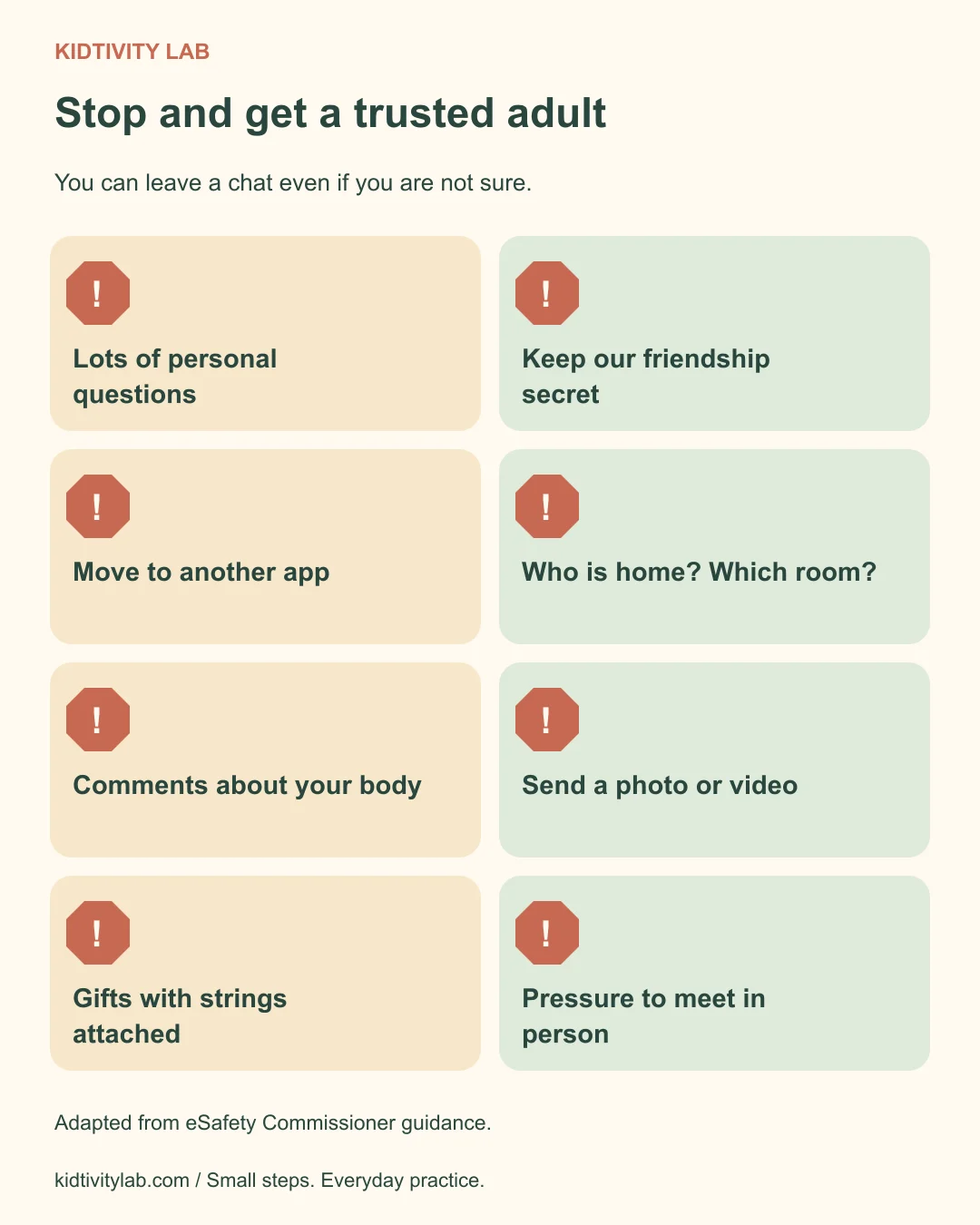
Teach behavior to notice instead of asking children to guess whether someone is “good” or “bad.” eSafety’s child-facing guidance describes pressure, secrecy, gifts, personal questions, and moving contact across apps as warning signs.
Read the short box below together, then try one pretend message: “I’ll give you coins if you send me a picture.” Your child can practice putting the controller down and finding you.
They don’t need to prove a person intended harm before leaving. “I’m not sure about this” is enough reason to get help.
6. Make requests for secrets a stop sign
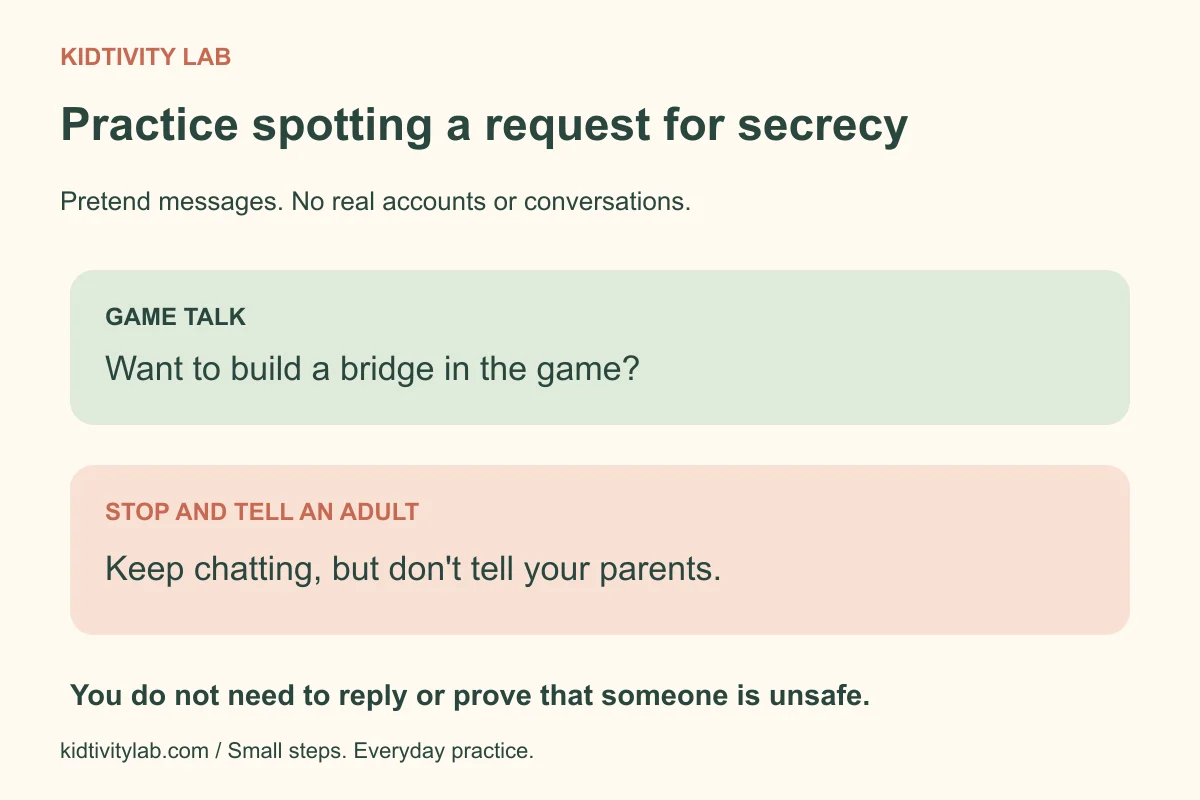
Say, “A friend doesn’t need you to hide our conversations from the adults who care for you.” This applies even if the person seems funny, helpful, or familiar.
Distinguish a short, happy surprise, such as a birthday card, from a secret that makes a child worried or keeps a relationship hidden. “Don’t tell your parents” is a reason to stop and tell, not a challenge to handle alone.
Avoid making your child responsible for investigating. They don’t need to ask follow-up questions, keep talking for evidence, or catch anyone doing something wrong.
7. Keep photos, video calls, and other apps off the table
For elementary kids, a useful rule is “No sending photos or starting video calls with gaming contacts, and no moving to another app without checking with me.” Explain that a request to switch apps can take the conversation away from the controls you set up.
That includes pictures that seem ordinary: a school shirt, the view from a window, or a bedroom can reveal private information. Don’t tell children that one shared picture means they’ve ruined everything; they can still come to you.
Your 10-year-old may say a whole group is moving to a new chat app. Pause and review it together, including its age rules, before any new account or contact.
8. Never let an online contact arrange a meeting with your child
Keep the rule simple: “You never go to meet someone from a game on your own.” If a contact asks about a park, school dismissal, or a place nearby, your child should tell you.
For an older child asking about meeting a gaming friend, eSafety advises parent permission and an accompanying trusted adult in a public daytime setting. Permission is a discussion for adults to assess carefully, not something a child negotiates with the contact.
Knowing a person’s face from a call or hearing a young voice doesn’t make an unsupervised meeting safe. Keep pickup plans and location sharing inside your family’s rules.
9. Keep play in shared spaces, especially near bedtime
A living-room console or tablet at the kitchen table makes it easier to stay available. Choose a common charging place at night so messages don’t follow your child into bed.
Shared space isn’t a substitute for checking settings or having conversations. Headphones, private messages, and companion apps can still keep contact out of view.
Plan an easy transition when play ends: snack, a book, or a short game together. Our indoor activity ideas, Charades, and Four Corners offer ways to play with friends away from a chat window.
10. Promise that telling you won’t be punished
Try “You won’t lose the game as punishment for telling me. We’ll work out how to keep you safe.” Keep that promise even if your child accepted a request you had agreed to decline.
You may need to pause contact, change settings, or stop using an unsafe feature. Explain the reason: “I’m stopping this person’s access to you,” rather than presenting the safety change as a penalty for asking for help.
If your child admits, “I sent the picture because they kept asking,” begin with “Thank you for telling me. You don’t have to solve this alone.” Save rule discussions for after you have helped with the immediate problem.
Warning signs you can read aloud together
Here is a short family version of the behaviors described in eSafety’s guidance:
Stop and get an adult if someone:
- Keeps asking personal questions.
- Wants the friendship kept secret.
- Pushes you to use another app.
- Asks who is home or which room you’re in.
- Makes uncomfortable comments about your body.
- Asks for pictures or video.
- Offers gifts or game money with strings attached.
- Keeps asking to meet in person.
You can leave even if the person says you’re being rude. These rules apply to people you know offline, too.
Changes parents should ask about calmly
Unexpected gifts or game currency, distress after messages, or a sudden need to hide a particular conversation are reasons to check in. eSafety’s parent guidance recommends staying involved and keeping conversations calm so children can ask for help.
One behavior doesn’t prove abuse. “You seemed upset after that game. Want to show me what happened?” opens a conversation without requiring your child to defend having friends.
If you find a specific concerning contact, act on that information. Don’t wait for several warning signs to line up before offering help.
If something has already happened
Start by thanking your child and stopping further contact. Don’t ask them to reply again, confront the person, or negotiate for a photo to be deleted.
Keep usernames, profile links, dates, and relevant message context. Save ordinary text evidence where safe before blocking; don’t download, copy, or forward sexual images of a child. Ask the reporting service or law enforcement how to handle such material.
Block and report the account through the game or app. For suspected child sexual exploitation or online enticement in the US, report to NCMEC’s CyberTipline; contact local police when appropriate and emergency services for immediate danger.
For other internet crimes, such as online fraud, the FBI’s IC3 reporting site accepts complaints. IC3 specifically directs crimes against children to NCMEC. Reporting in a game doesn’t replace reporting suspected exploitation to the relevant authorities.
Put your rules on one page
The printable family agreement includes rules for contacts, private information, photos, secrecy, and asking for help, plus an adult promise to listen. Read it together and choose a date to revisit it.
Use the AAP Family Media Plan if you want to plan other parts of screen use. For a short learning session together, you can also explore our learning games rather than opening another social game.
Common questions
At what age can kids have online friends?
There isn’t one age that makes every game or contact suitable. Follow the platform’s age requirements, consider your child’s needs, and start with people your family knows and settings you can supervise.
Is Roblox chat safe for a 7-year-old?
No chat setting guarantees safety. For a 7-year-old, you can keep chat disabled and review the child’s account and individual games; Roblox’s official controls vary by age checks, consent, and feature, so check them directly.
Should I read my child’s messages?
Explain the supervision plan before play starts, including when you’ll review messages together. Younger children need more direct involvement; if you have a specific safety concern, prioritize protecting the child and explain what you’re doing.
What if my child already shared a photo?
Stay calm, stop further contact, and preserve relevant text and account details. If there are threats, sexual requests, or suspected exploitation, use CyberTipline or police guidance; don’t copy or forward sexual images of a child.